
From the workshop
Creating your first effect recipe
Build a target ring, add your own visuals and sounds, and connect it to a spell or attack.
An effect recipe tells Bookwyrm what to draw and play on the VTT when something flashy happens, where it goes, and how long it lasts. Recipes live in your compendiums, same as spells and audio tracks.
I always start with a plain ring around the target. It needs no artwork, it shows straight away whether placement is right, and once it works you can swap in real visuals and sound. In this post I'll put a ring on a goblin, then turn it into a proper Fire Bolt impact.
Create the recipe
Go to Effect Recipes under Media & worldbuilding in your compendium area and choose Create. Call it Target ring and pick a compendium you own. The official system compendiums are read-only.
The editor has three tabs:
Overview holds the name, compendium and summary, plus the Automatic trigger section we'll come back to.
Sequence is the list of steps the recipe plays.
Media references connects those steps to your visual and audio entries.
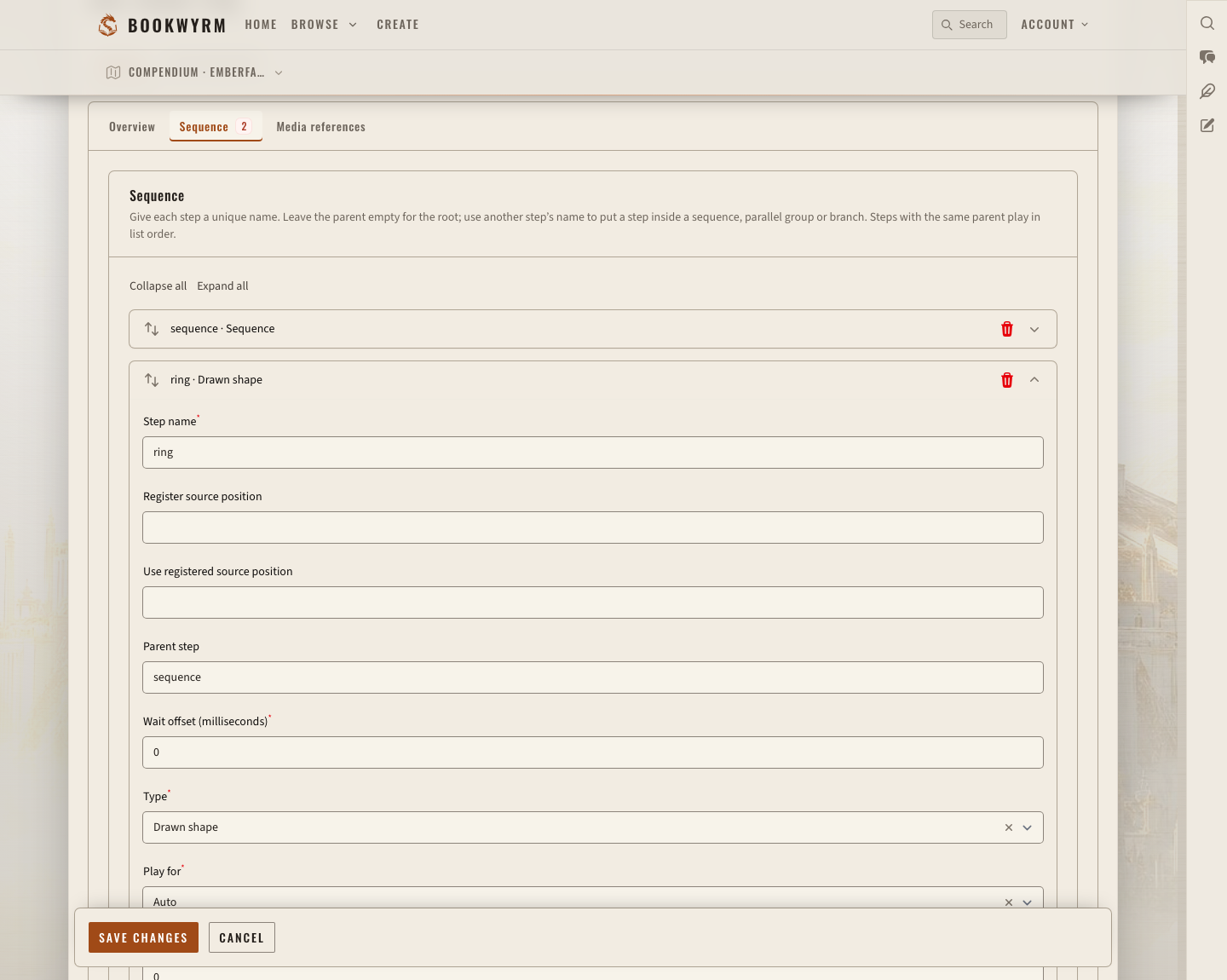
A new recipe starts with two steps, a root called sequence and a child called wait. Steps are collapsed, so click one to open it. Keep the root as it is and turn wait into the ring:
Change Step name to
ring.Leave Parent step as
sequence.Set Type to Drawn shape.
Set Duration ms to
1000and leave Repeat count at1.
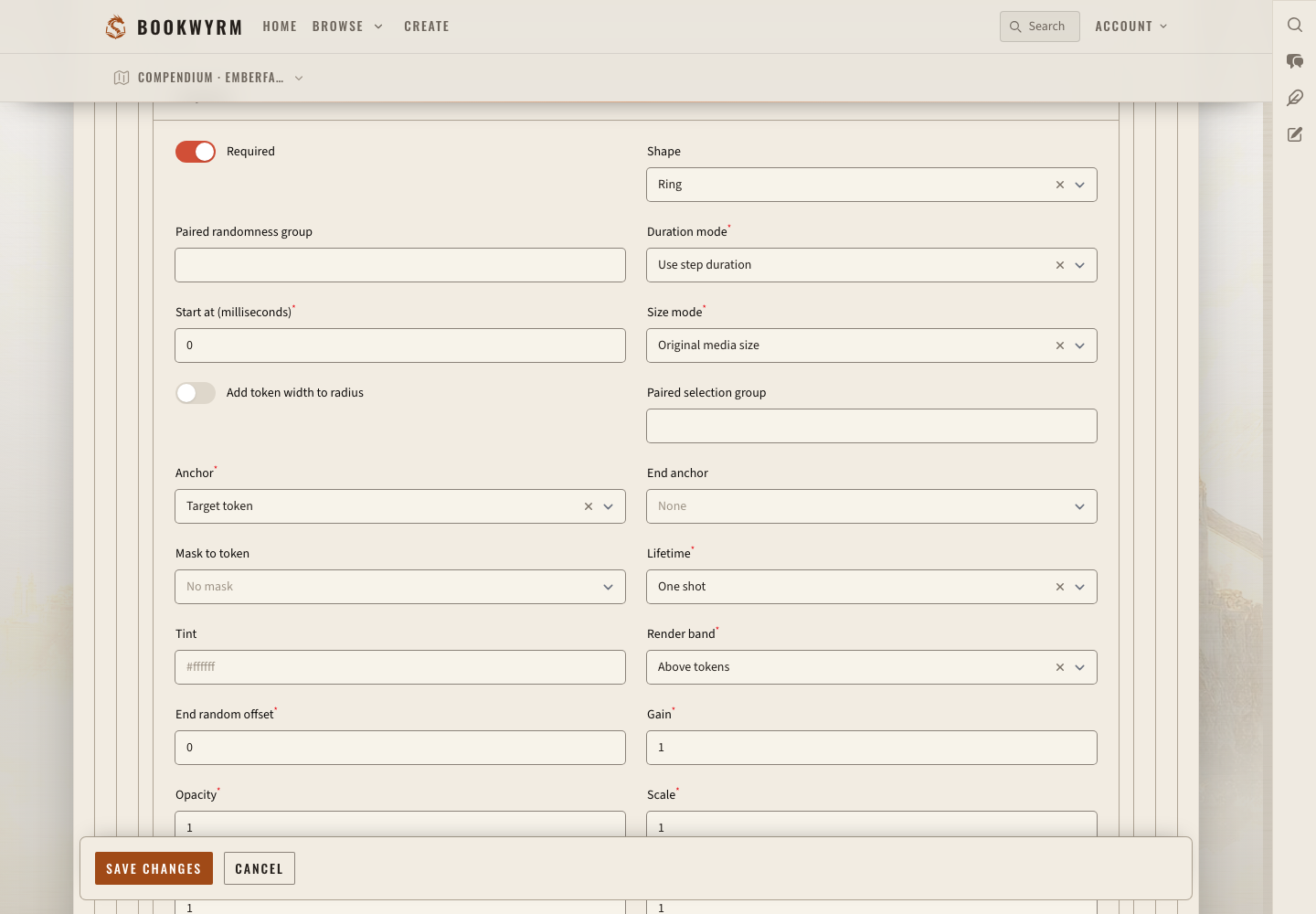
Further down the step, open Playback. Set Shape to Ring, Anchor to Target token and Lifetime to One shot. Leave everything else at its defaults for now.
A drawn shape doesn't need anything in Media references, so that tab can stay empty.
Every step needs its own name. Exactly one step has no parent, and that's the root. The others point at their parent by name, so if you rename a group, update its children's Parent step to match.
Preview and save
Under the tabs there's a Preview panel. Hit the play button and the ring plays using what's in the editor right now, saved or not. The sample is always a hit at 30 feet, and nothing gets sent to your table.
Stop it, then save. The button says Create the first time and Save changes after that. Saving is when Bookwyrm checks the sequence and media references and records a new revision. Previewing doesn't save anything.
Once saved, the recipe's own entry page gets the same preview, as long as you're allowed to play it.
Try it on a goblin
Make sure Include in search & tools is on for the recipe's compendium. That's all the VTT needs, and there are no campaign packs to set up.
Open the VTT as DM, go to the Effects tab in the dock and choose Play a recipe. Set Effect recipe to Target ring, Source token to your wizard and Target token to the goblin. Both need to be on the same map. Choose Play effect and the ring pops up around the goblin. On a narrow window the Effects tab hides under More tabs.
For a quick experiment, change Anchor to Source token, save, and play it again. Same recipe, but now the ring sits on the wizard.
Swap the ring for artwork
A ring is fine for testing, but you'll want real art. Artwork lives in a Visual Effect entry, and the recipe decides when and where it plays.
Create a Visual Effect in a compendium you own. I called mine "Arcane burst".
Open its Variants list and choose Upload variant.
Upload a PNG, a WebP, or a silent VP8/VP9 WebM, then wait for it to finish processing. Files can be up to 50 MB and 8192 pixels on each side, and videos up to ten minutes long.
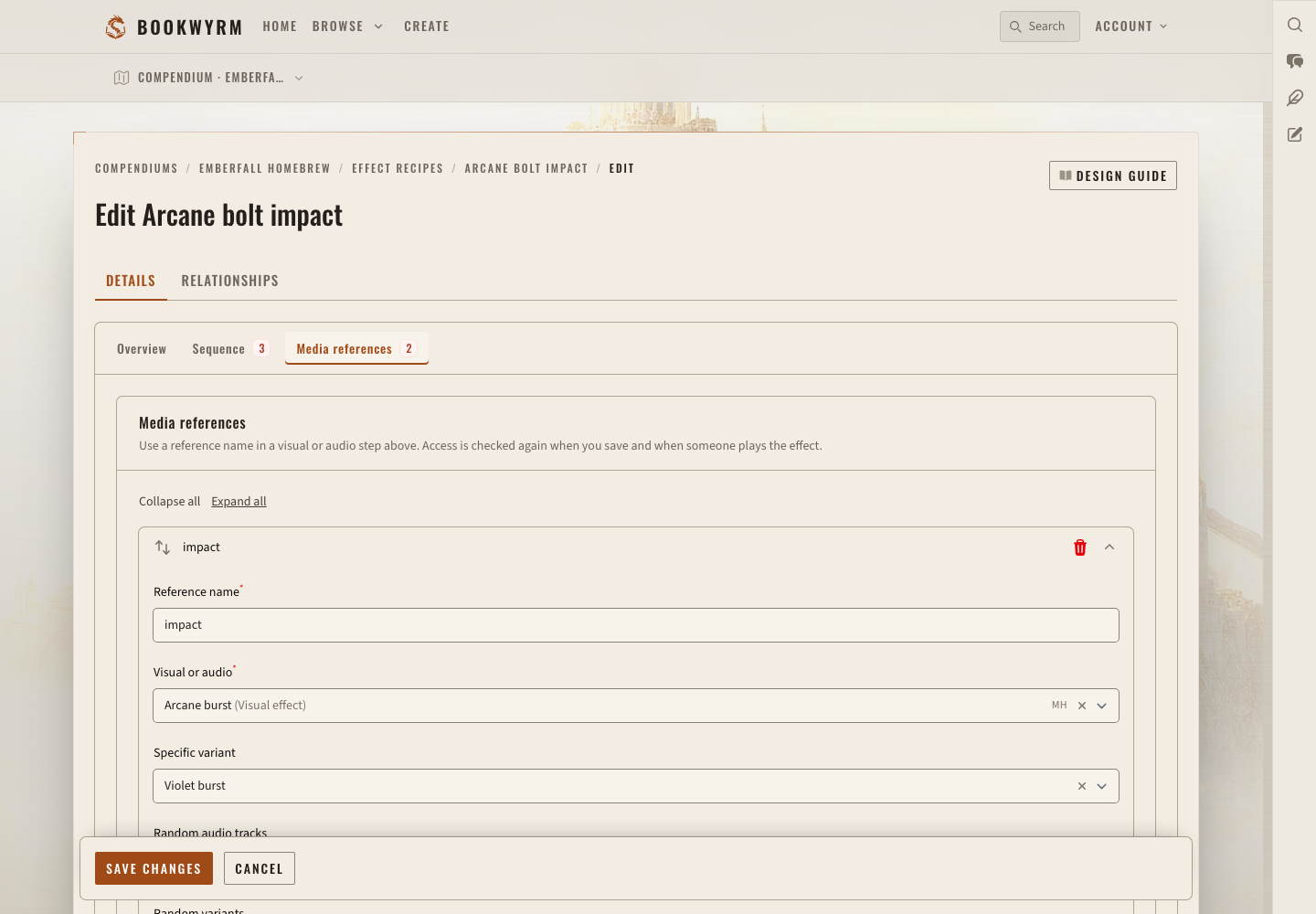
Back in your recipe, open Media references and add a reference.
Set Reference name to
impactand pick "Arcane burst" under Visual or audio. If it has several variants, pick one under Specific variant.In Sequence, change the ring step's Type to Visual and set its Media reference name to
impact.
Visual uploads have to be silent, so sound gets its own audio track.
Then pick a Size mode. Relative to token suits an effect that wraps around a creature, and Template size follows the area of a spell's template. For something that travels from caster to target, set an Anchor and an End anchor and use Stretch or Rotate towards. That only works when both positions are known, either from the action or from the tokens you picked when playing it by hand.
Only use media that you and your players can actually see. Pointing a recipe at an entry doesn't copy it or give anyone else access to it.
Add a whoosh
Sound effects are ordinary audio tracks. Use one you already have access to, or upload one through the usual audio authoring flow. I'm using "Arcane whoosh".
To start the burst and the whoosh at the same moment:
Change the root
sequencestep's Type to Parallel group. It can keep its name.In Media references, add a reference called
impact-soundand pick the audio track.Choose Add step and call it
sound. Set Parent step tosequenceand Type to Audio.Set its Media reference name to
impact-soundand give it a duration.
A step's name doesn't change how it behaves. Its Type does. A Sequence plays its children one after another, and a Parallel group starts them all together, though each child's delay still applies. So if you want a launch sound, then a bolt flying across the map, then an impact, use a sequence. For an impact and its sound, use a parallel group. Groups can sit inside other groups, so you can mix the two.
Add some variety
Once the basic version works, there are a few ways to stop it looking the same every time:
Random variants picks one of a visual's variants at random, and Random audio tracks does the same with sounds.
Distance variants chooses a visual variant by range. You give each one an Up to distance in feet, in ascending order.
A Conditional branch step picks between its children using things like outcome, damage type, distance, or whether there's a target at all. You set the test on each child under Branch condition.
Play for decides whether a step runs Once per action or for Each target.
Distance variants only work for visuals. If you want a different sound at 15 feet than at 60, add two audio references and choose between their steps with a conditional branch on distance.
Add one variation at a time and test it on the table with the right setup. The preview only ever plays a hit at 30 feet, so it can't tell you whether your 60-foot miss branch works.
Play it automatically
Back on the Overview tab, open Automatic trigger and turn on Play automatically. Set When to Action applied and type Fire Bolt into Matching spell, attack or condition name. Save.
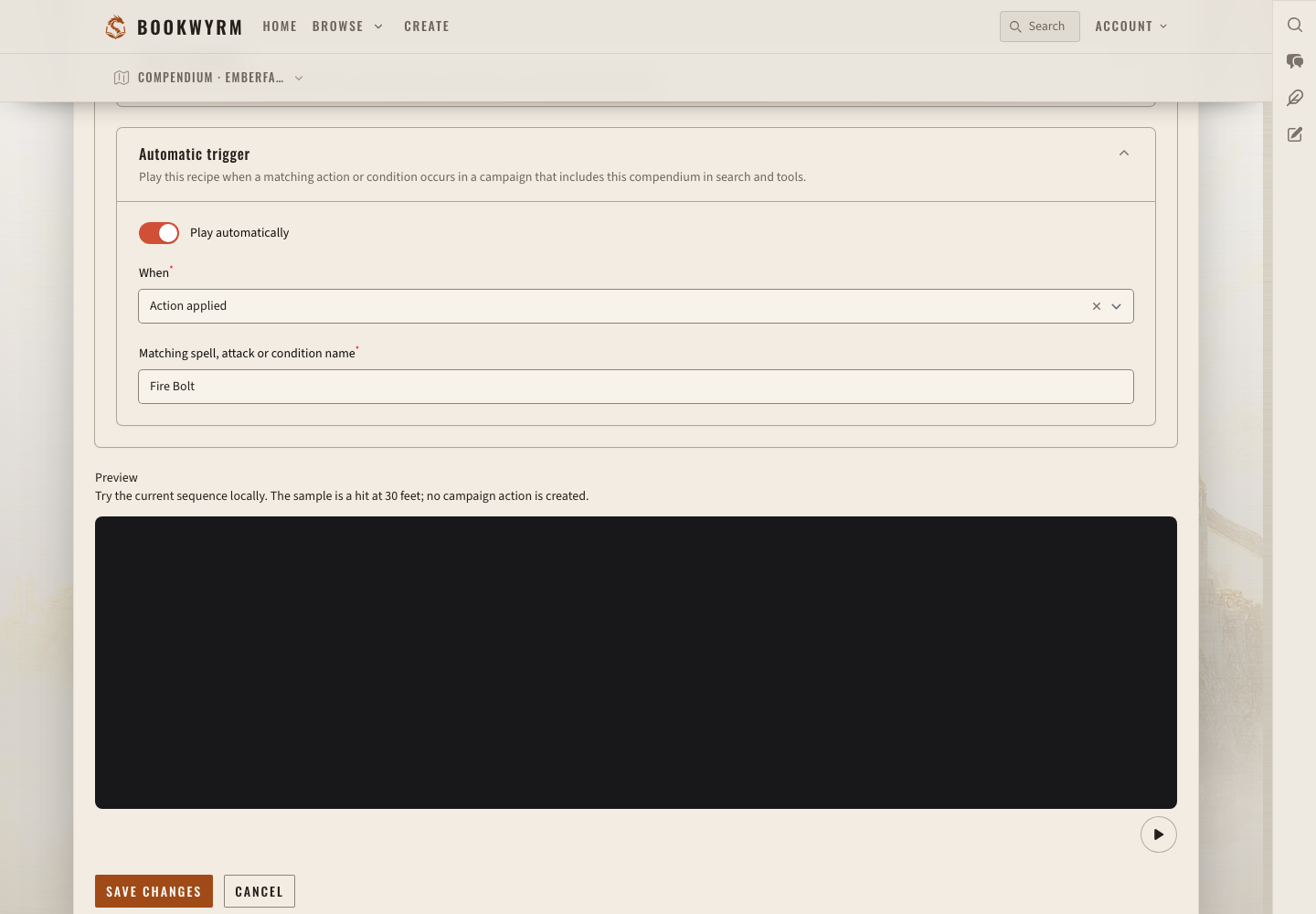
For a condition, choose Condition added and type the condition's name, such as Poisoned. It has to be one of the token conditions Bookwyrm supports. Whether the effect flashes once or stays on while the condition lasts is down to the steps you built.
To test it, cast Fire Bolt at the goblin in a campaign and confirm the result. As long as Include in search & tools is on for the compendium, there's nothing else to set up. Everyone at the table still needs access to the recipe and its media, and anyone can turn off automatic effects for themselves with Play automatic visual effects and Play automatic sound effects in their account preferences.
Adapting an imported recipe
Imported recipes can be a good starting point, but check them first. Some came from sources that don't include media Bookwyrm can play, and those say so on their entry page instead of offering a preview.
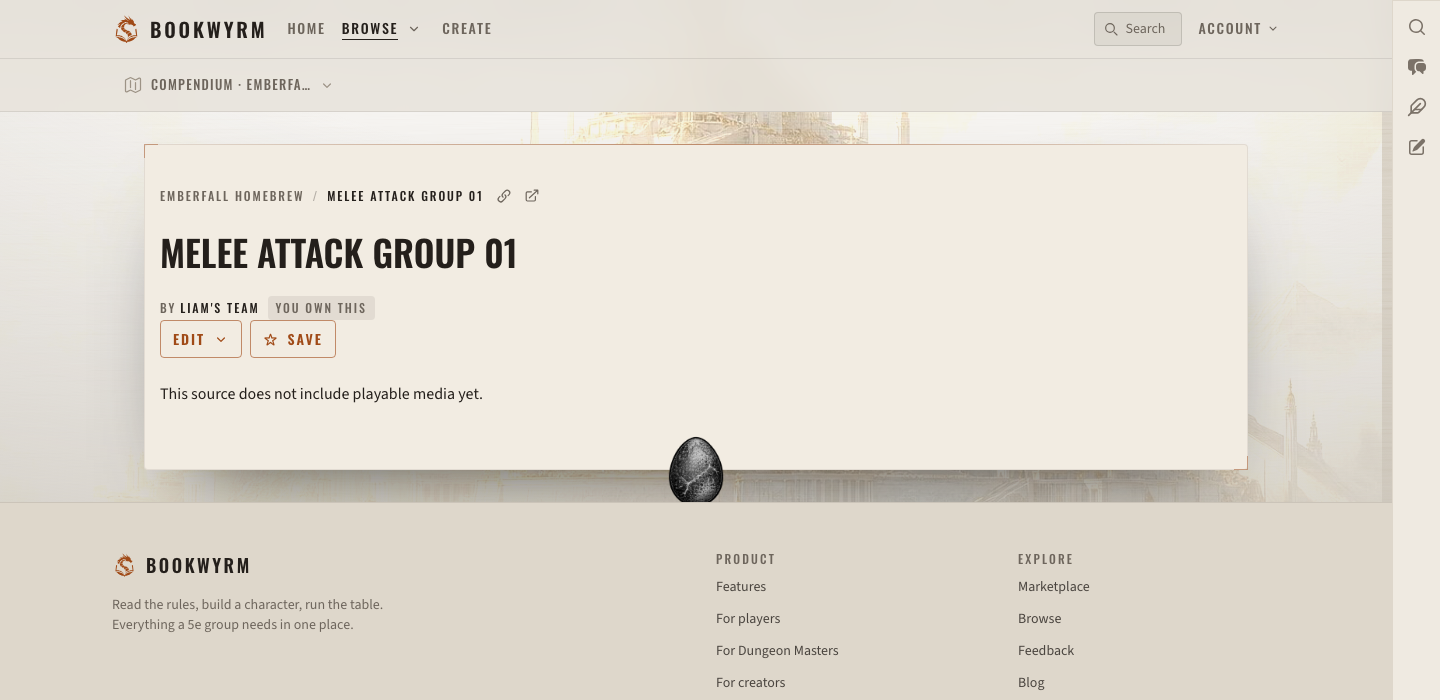
To make one your own, open its Edit menu and choose Duplicate, then pick a compendium you own. Some licensed content can't be copied at all. Once you have your copy, go through the steps and fill in every media reference. Incomplete imports often have the steps in place with the media left blank. Until every required reference points at media you can use, saving is blocked and the recipe has no playable revision. Some imports also carry 3D animation data, which won't play on the 2D VTT.
When you're done, check it three ways: the preview, a manual play on the VTT, and the real spell or attack that triggers it. Each one catches mistakes the others miss.