From the workshop
Worlds within worlds: seamless maps in the VTT
Link a world map to its regions, cities, buildings, and battlemaps, then move between them by zooming naturally through the VTT.
A world map is great until the party reaches a city. The city map is great until they walk into a tavern. Then somebody starts a fight, you need the cellar battlemap, and the whole table waits while you dig through your scenes for it.
So I made maps link to each other. Put a pin on the region map where the city sits, point it at the city's scene, and zooming in on that spot takes you there. The city fades in over the region, grows until it fills the screen, and then you're in the city scene. Zoom all the way back out and you're on the region map again.
You can nest them as deep as your campaign goes, world to region to city to tavern to cellar. A map can also hold as many links as you like. My test city has one for the harbour, one for the castle and one for the tavern, with nothing forcing them into a single route.
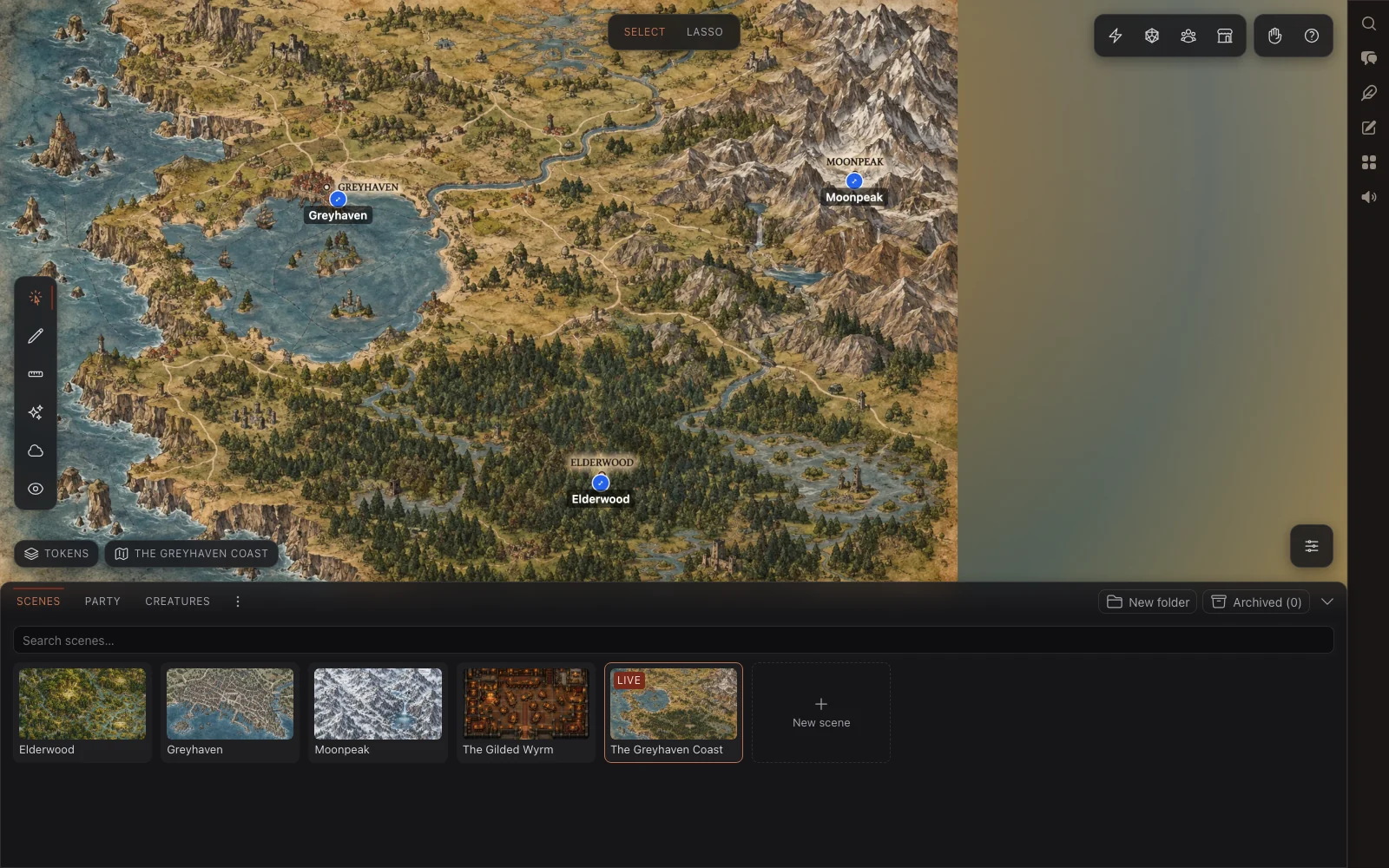
Link one map to another
Every level needs its own VTT scene with its own map, so make those first. The art doesn't need to match in size, shape or style. The linked map keeps its own proportions as it grows over the parent.
Then open the bigger map and:
Right-click an empty spot on the map where the more detailed place sits, and choose Add pin.
In Place a pin, give it a label if it helps, leave it on A scene, and pick the destination from the thumbnails under Go to scene.
Tick Show scene artwork on the map if you want to see the zoom area, which I'd recommend while you're setting it up.
Choose who can use it under When entered, then click Place pin.
Do the same on the city map for the tavern, and so on down the chain. To change a pin later, right-click it and choose Edit.
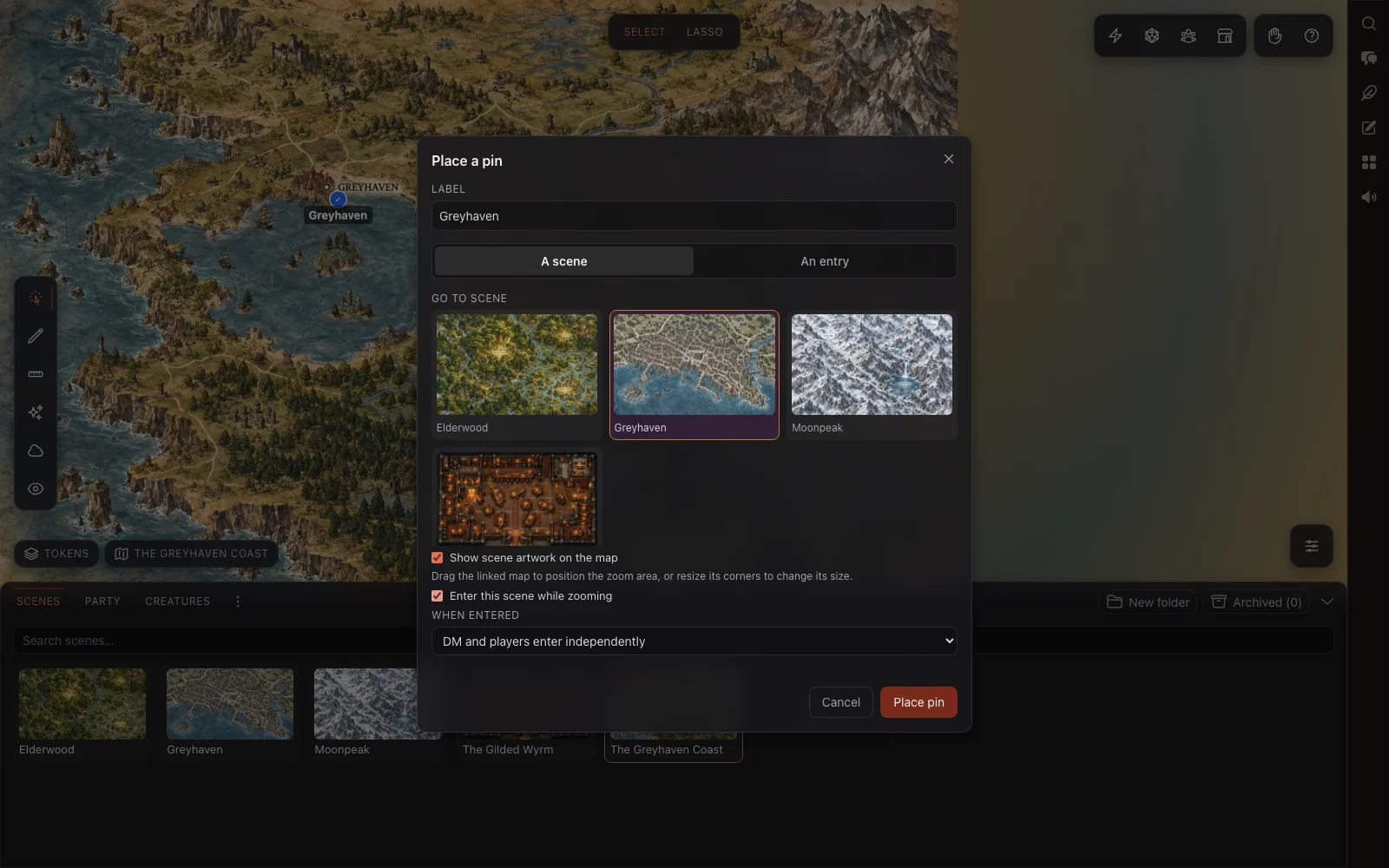
Enter this scene while zooming is on by default. Untick it and the pin is click-only, which suits a door you don't want anyone scrolling through by accident.
Size the zoom area
The pin's size sets the area you zoom through. With Show scene artwork on the map on, the pin shows up as a small copy of the linked map sitting right on the board. Drag it over the place it represents and pull its corners until it covers about the right area. Without the artwork you get the classic round marker, and resizing the marker resizes the zoom area just the same. You just can't see its edges.
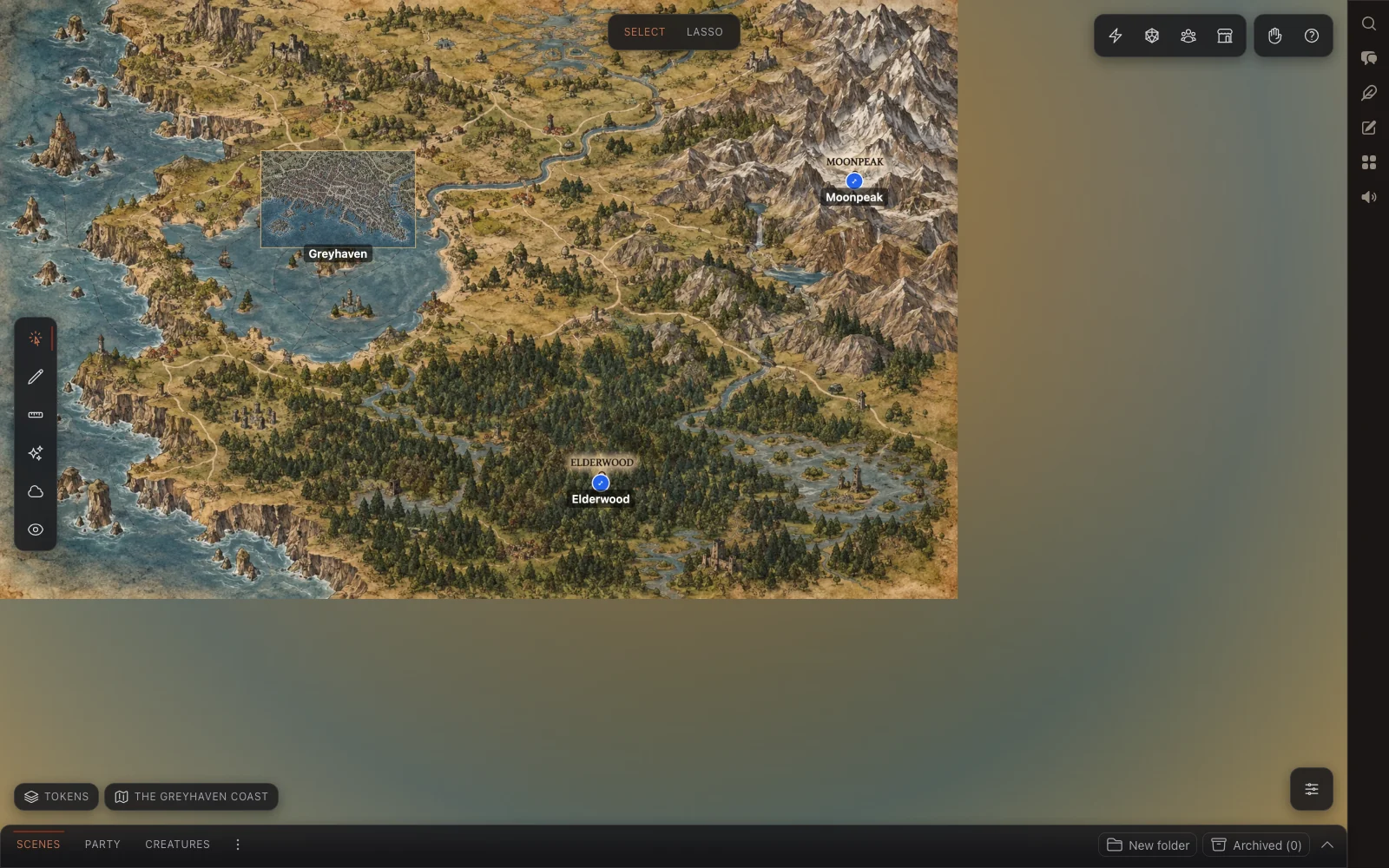
You're matching an area, not tracing a border. I'd err on the generous side. For a city, take in the roads leading up to it rather than squeezing the frame onto the walls. For a tavern, include a few neighbouring buildings. The transition feels smoother with a bit of room around the place.
Zoom through a map
Put the pointer over the linked place and scroll in as normal. Once that area fills about half the screen, the linked map starts to fade in over it.
Keep scrolling and it pushes through. A gold bar along the bottom of the preview fills up, and the linked map spreads out to cover the board. Once the bar is full, you're in the new scene. It takes a deliberate amount of scrolling, so an ordinary zoom won't throw you into Greyhaven by mistake. If you stop partway, the preview settles back and you stay where you were.
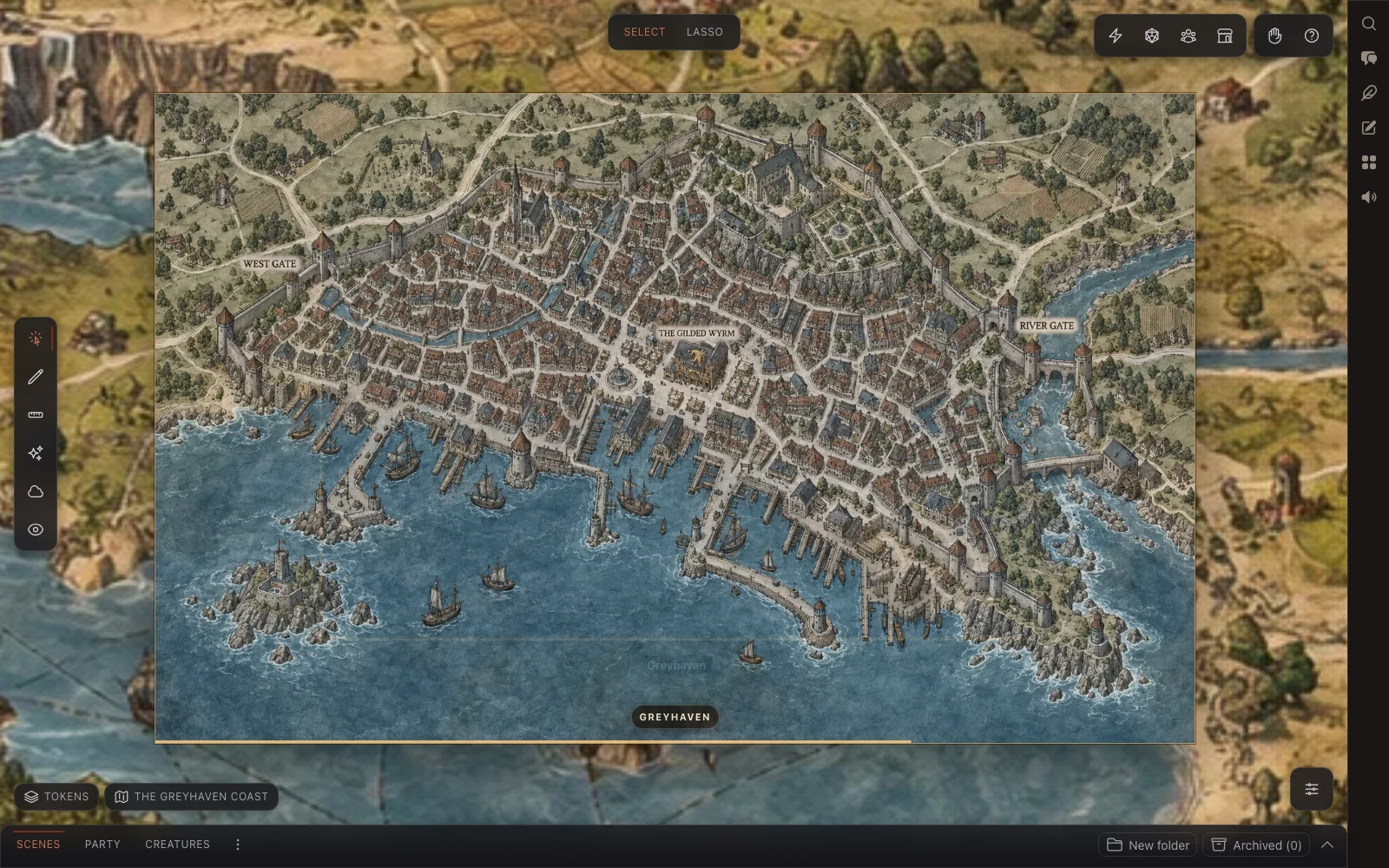
On a phone or tablet, pinch over the linked area instead. Players can also just tap the pin. As the DM, a single click selects the pin so you can move it, and a double-click follows it.
To go back up, zoom the child map all the way out and keep going. The parent map fades back in and takes over. This works when you got there through the link in the same browser tab. If you open the city scene some other way, there's no parent for it to return to.
Moving yourself or the whole table
When entered decides what happens when someone follows the link:
DM and players enter independently is the default. Following the link takes you there and nobody else. I use it for peeking at the city while the party is still on the road, and players can wander into places they've spotted.
Only the DM can enter keeps players out even if they can see the pin.
DM moves the whole table makes the destination the live scene for everyone when you go through. Players can see these pins but can't use them.
Whether players see a pin at all is still down to its layer. Right-click it, open Layer and choose DM to keep a destination secret.
When you want everyone to move without a pin, click the scene's tile in the Scenes tab. The tile marked Live is where the table currently is.
Let the AI draw the next level down
If you don't have a detailed map for somewhere yet, click New scene in the Scenes tab, choose Generate part of this scene, then Select an area and drag a box over the part of the map you want a closer look at. Pick a map type, describe the place, and it draws a couple of options. Keep the one you like and it becomes a new scene, already linked from the parent with a pin only you can see or use, artwork showing. Each option uses one AI image generation.
Tips for good links
Pick places with strong landmarks. A coastline, a river or a city gate makes the jump between two very different art styles feel intentional.
Keep labels short, and skip them when the art makes it obvious. They matter most when several entrances sit close together.
Test both directions. Zoom in, then back out. If either way seems to jump sideways, nudge the pin.
Zooming through only works in the Flat and Pieces board views. In Tabletop, pins still work when you click them, but scrolling won't carry you through.
One last thing, because the names clash. The Linked scenes list on the working-map pill is something else. It's for compendium scene art made for that map, which you can spotlight full-screen to the table. It doesn't list your pins.