From the workshop
Playing visual and sound effects in the VTT
Cast spells and make attacks with automatic animations and sounds from your enabled compendiums.
When your wizard casts Fire Bolt at a goblin, the table should see a bolt of fire and hear it land. In Bookwyrm's VTT you get that by casting from the character sheet as normal. Bookwyrm rolls the attack, applies the damage, and plays whichever matching effect your compendiums provide.
There's nothing to set up per campaign, and you don't pick an effect each time you cast.
Before you start
Effects come from the compendiums in your library. Any compendium with Include in search & tools switched on can supply them. Switch it off and that compendium's effects stop playing and drop out of the recipe picker.
Everyone at the table sees an effect only if they can access the recipe and the media it uses. Campaign sharing counts. The catch is that a recipe pulling visuals from one pack and sounds from another needs access to both.
Each person can also choose what plays for them, under Account → Preferences → VTT effects:
Play automatic visual effects
Play automatic sound effects
Effect volume
These only change your own screen and speakers. Both switches are on for new accounts. If you had an account before automatic effects arrived and nothing plays, check them first.
Cast a spell or make an attack
Your character needs a token in the scene. Then:
Open the character sheet from inside the VTT.
Click Cast next to a spell, Attack next to a weapon, or Use for an action without an attack roll. The sheet steps out of the way so you can see the board.
Aim. A single-target spell draws a line from your token and tells you how far away the target is. Area spells show their template instead. A Fireball's circle follows your cursor, while a cone stays rooted to you and turns to face it.
For an attack, pick Auto, Advantage or Disadvantage before you click. Auto takes conditions into account, so a prone caster rolls with disadvantage without you having to remember.
Click the target. Press Escape instead if you change your mind.
If the spell needs a slot, choose which one.
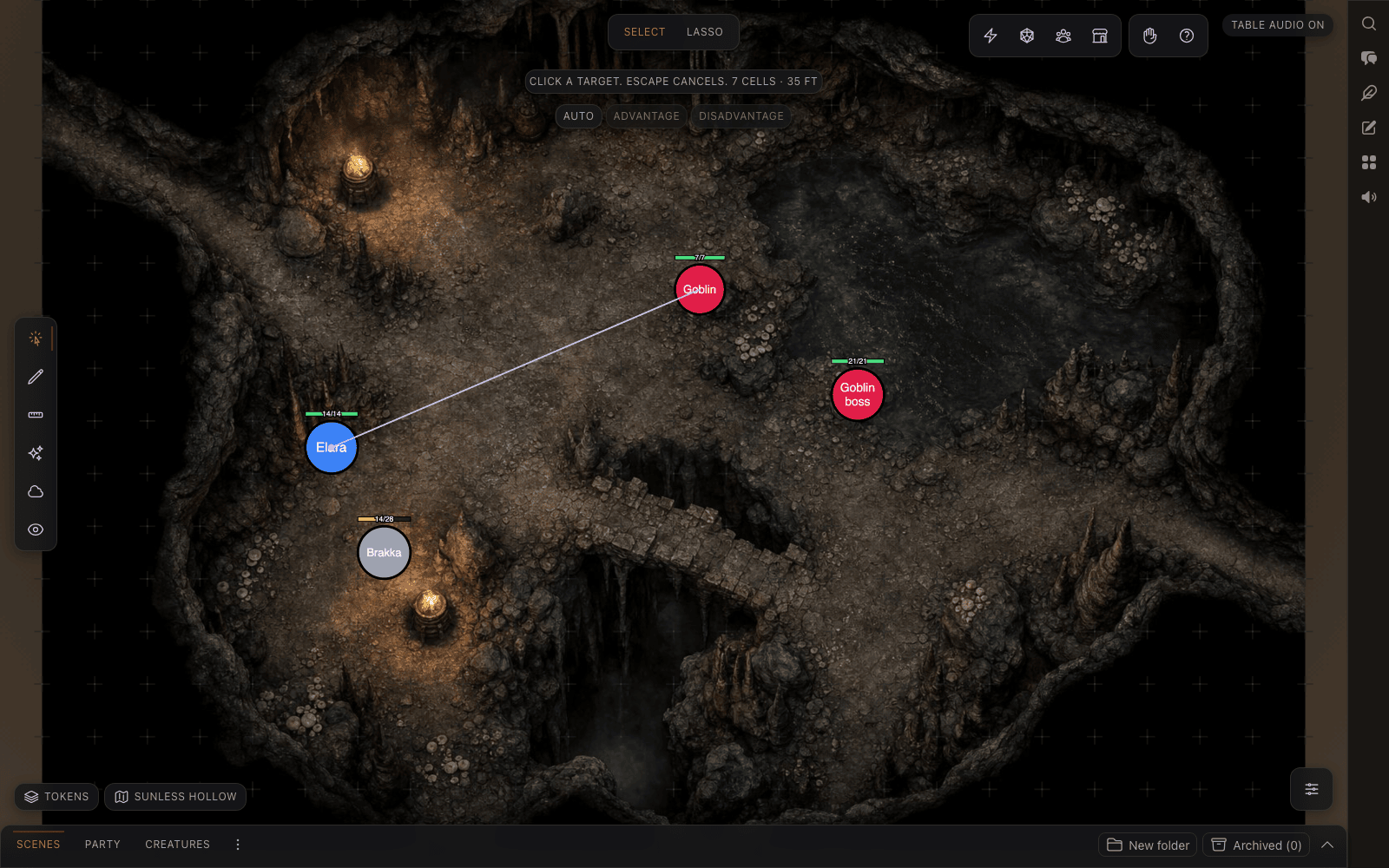
What happens next depends on who cast it. A DM's action rolls and applies straight away. A player's action follows the campaign's Rules automation setting. On Confirm, the default, it waits in chat until the DM clicks Approve & apply, and the rolls stay hidden until then. On Auto it goes through as soon as it's ready.
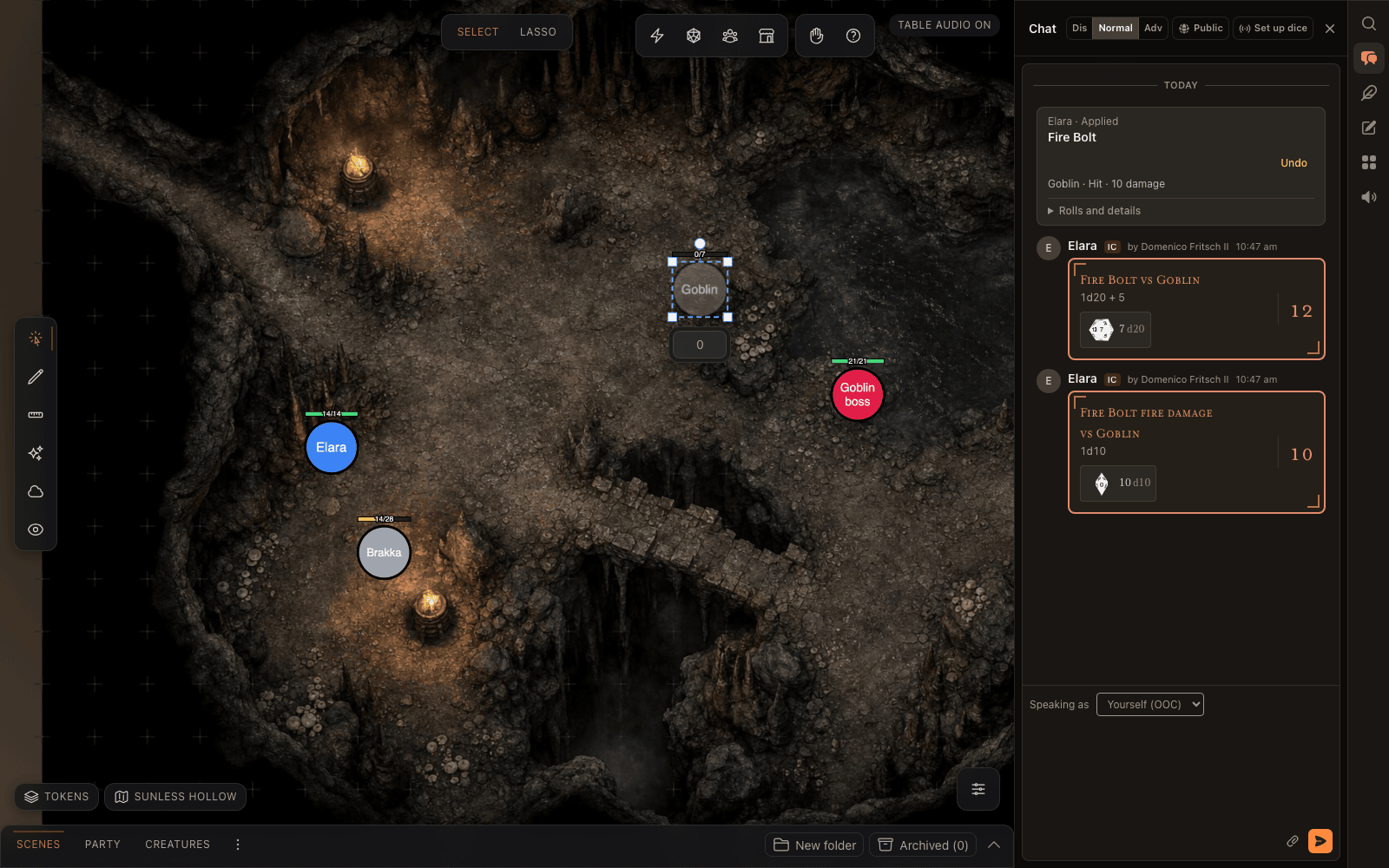
Once the action lands, the effect plays, the token's HP changes on the board and the result shows up in chat. The DM gets an Undo button on it in case someone clicked the wrong goblin.
A few examples from play:
Fire Bolt at a goblin. Aim, click the goblin, done. You get one attack roll and, on a hit, one damage roll, and the goblin's HP drops on the map. The fire animation plays if you have one.
Cure Wounds on the fighter. Click the fighter and choose a slot. Bookwyrm rolls the healing with your spellcasting modifier, adds the extra dice if you upcast, and stops at the fighter's maximum HP. The slot comes off your sheet straight away.
A goblin with no AC set. The chat card asks for its AC. Type it in and click Set AC, and the attack resolves using the dice already rolled.
A saving throw against a player's character. Players roll their own saves, so the card waits for that roll before applying anything. Monsters roll theirs automatically.
Command, and other spells that need a ruling. The card tells the DM a decision is needed, rather than reporting "0 damage".
DMs can do the same from a monster's stat block. Click an action's name and aim it like a spell.
Reading a spell description or rolling a loose die won't play an effect. Effects only follow an action that's actually been applied.
The first targeted action also switches on browser audio for the table. Use the Table audio control at the top of the board to mute it again. Your own sound settings still apply on top of that, and visuals play either way.
Play an effect by hand
Sometimes you just want something to happen, like a portal opening or lightning striking the tower. That's what the Effects tab in the DM's dock is for. Until you pin it, it lives in the dock's More tabs menu, the ⋮ next to the other tabs. If you use it a lot, right-click it and choose Always show.
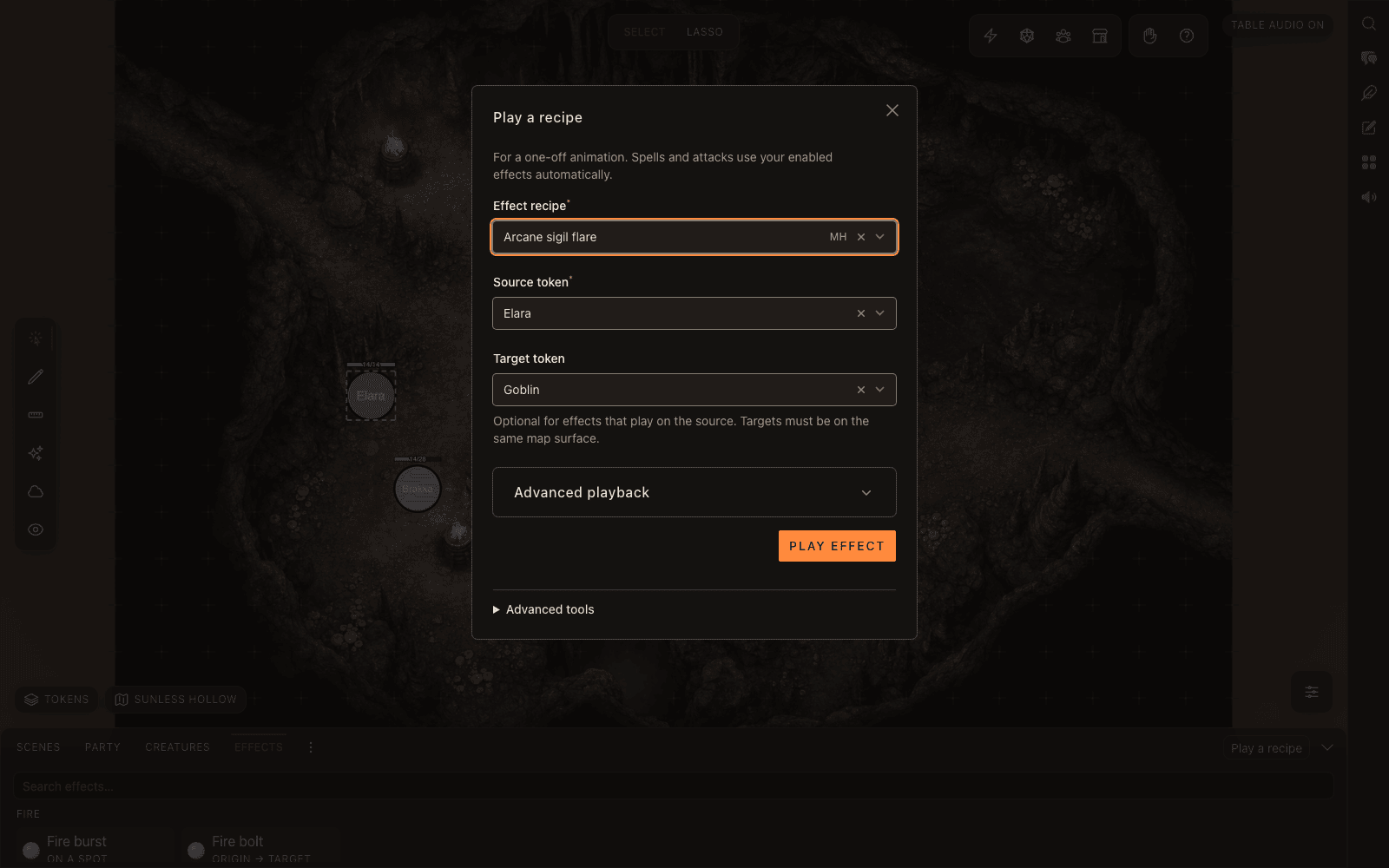
The cards in the tab are simple built-in effects, such as fire bursts and frost rays, that you place straight onto the map. For one of your own recipes, or one from a compendium, click Play a recipe:
Choose the Effect recipe.
Choose a Source token, and a Target token if the effect travels. If you select tokens on the board first, they're filled in for you. The first one you pick is the source and the second is the target.
Click Play effect.
An effect played by hand is only for show. Nothing gets rolled, damaged, healed or spent. Cast from the sheet when you want that.
Most recipes need nothing more. For the ones that do, Advanced playback has demo settings, ordered targets, and a way to tie an effect to a condition or a placed object. Advanced tools lets you teleport or place a token, and holds Inspect effect matching, which I'll come back to at the end.
To stop a lingering effect, open Play a recipe again and click Stop next to it under Ongoing effects.
Make your own recipe play automatically
Open your recipe and expand Automatic trigger. Turn on Play automatically and choose whether it fires on Action applied or Condition added. Then type the spell, attack or condition it should match, such as Fire Bolt, and save.
From then on it plays whenever that action or condition comes up in a campaign that has the compendium switched on. The recipe only covers the look and sound. The action still does the rolling, damage and healing. Creating your first effect recipe walks through building one from scratch.
When an effect doesn't play
Work through these in order:
Are your automatic visual and sound switches on under Preferences?
Does the compendium with the recipe have Include in search & tools switched on?
Do you have access to every pack the recipe uses?
If a recipe won't play anywhere, open it and click Play preview. Some imported entries are missing their media or were built for 3D, so they keep their details but have no 2D effect to play.
For the full picture, go to Effects → Play a recipe → Advanced tools → Inspect effect matching. It lists which recipes match the action and whether you can load their media.