How to solve it
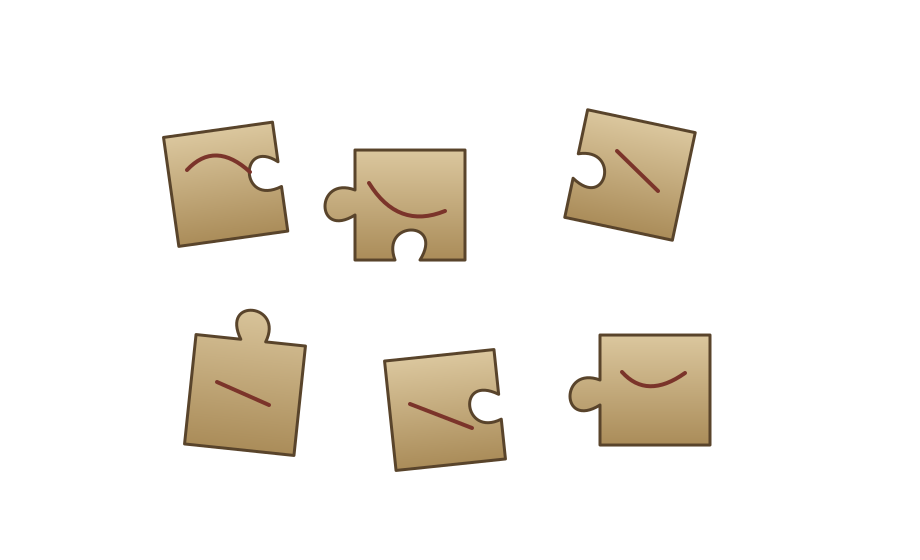
Drag the scattered fragments to rebuild the image. Correct neighbours snap together when you release them close enough to their matching edge. Joined fragments move together, so you can build separate sections anywhere on the workspace and then bring them together.
On the keyboard, Tab selects a fragment, arrow keys move it, and Enter or Space places it. Escape restores its last saved position. The puzzle is solved when every fragment belongs to one connected image. Moving an incorrect piece does not spend an attempt.
Setting it up
Choose Jigsaw in the VTT puzzle tray and place it on the board. Its setup window opens automatically. Upload an image up to 5 MB, choose the cut style, and set between 2 and 10 rows and columns, giving 4 to 100 fragments. For example, 5 rows and 8 columns makes 40 pieces. Save and reset to apply your settings. Difficulty presets range from 4 fragments on Easy to 25 on Deadly. Images keep their original proportions.
Fragments stay inside the puzzle workspace. You can assemble separate sections and park pieces anywhere inside it, but cannot move them onto the surrounding VTT board.
Pieces start scattered rather than in rows. In a placed puzzle's setup window, Shuffle pieces gives them new positions without changing the saved image, cuts or piece count. It separates joined pieces and resets progress, with confirmation first. Unsaved setup edits are not applied.
Allow piece rotation is off by default. Enable it for a harder puzzle with fragments scattered at random angles. Select a fragment to reveal its rotation handle, then drag the handle to turn it in 45° steps, or hold Alt to turn freely. Q and E turn the selected section by 15°; Enter places it and Escape restores its saved position and angle. Matching edges join only when their angles are within 8°, then align exactly. Joined sections rotate together, and the completed image can face any direction. Shuffle pieces also randomizes angles when this option is enabled.
- Classic cuts have rounded tabs and sockets.
- Straight cuts make rectangular tiles.
- Torn cuts have fine, ragged edges, suited to letters and maps.
- Cracked cuts have angular breaks, suited to stone tablets.
The wood, parchment and stone skins change the instruction plaque. The fragments always show your uploaded image. All interaction modes are supported, and saved positions and connections remain when players return.
Where it fits in a campaign
Rebuild a torn letter to read its warning, piece together a map to find a hidden entrance, or repair a cracked inscription to unlock a door. Attach a solve outcome to reveal a handout or open the passage.
The uploaded image is delivered to players' browsers in full so they can render its fragments. Do not use it to hide information that must remain secret from someone inspecting the image file.
Running any puzzle
Every puzzle type is built and run the same way. The guide above covers what's particular to this one.
Write it once
A puzzle is a compendium entry. Create a new Puzzle in one of your compendiums and choose its type. The form has four tabs. Overview holds the type, a spoiler-free flavour line, an optional cover image and the settings below.
- Who operates it is one player driving while the party watches, everyone operating it, or you operating it while players watch. You can always operate it yourself, whatever you pick.
- Difficulty is Easy, Medium, Hard or Deadly. Changing it rewrites the settings that tier controls and leaves your solution and text alone, so pick a tier first and fine-tune afterwards.
- Solution is either written by you or generated each time the puzzle is placed. Generated is the default, so players who own the puzzle can't look up the answer. Reroll the solution each session gives a recurring puzzle a fresh answer every session.
- Limits set a maximum number of attempts, a time limit (with the option to show players the timer) and a lockout. With a lockout, running out of attempts locks the puzzle for a while. Without one, the puzzle fails.
The other three tabs are Mechanism, which holds the settings described above, Hints, where you write up to ten hints to reveal from the board when you choose, and Presentation, for the skin, the title, an intro and the text players see on success or failure.
Put it on the board
At the table, open the Puzzles tab in the dock and drag a puzzle onto the map, or click it to drop it in the middle of your view. That makes a copy for this table only. Its progress lives with the table, and the compendium entry stays untouched. Most puzzles sit on the map as an object. Pressure plates and rune sequences can also lay tiles on the scene for tokens to step on.
There's no separate step to start it. The first player to touch it starts it. In single-driver mode, that player takes the controls and everyone else watches every move live.
Run it live
Right-click a placed puzzle for the DM's controls. The most useful ones:
- Reveal a hint and Rule out a wrong option for a party that's stuck.
- Open it by magic (Knock) or Force it open when a spell or a crowbar should simply win.
- Give one more attempt, Pause the timer and Reset.
- Approve the solve or Reject the solve, with an optional reply, if you asked to approve solves first.
- Set up… to change this table's copy and choose what happens When it is solved and When it fails. Outcomes can open or unlock a door, reveal a token, object, handout or another puzzle, play an effect, post to chat, roll damage or start combat.
Skip the minigame
Not every table wants to play every puzzle. Set a placement's Just roll option to Always and the puzzle shows a single Roll to resolve button instead. Players roll the puzzle's Just roll skill against its DC, which defaults to Investigation at DC 15. A pass solves it and a fail costs an attempt. Set it to Never to make the party play it out.